What Your Photos Reveal About You: EXIF, Location, and Privacy
A photo can carry more than pixels. Learn what EXIF metadata reveals, how to check location data, and how to prepare a more private copy before sharing.
- Photos may contain GPS coordinates, capture dates, and device details; not every image contains every kind of metadata.
- Changing .jpeg to .jpg preserves the file contents, including metadata. This site's converter does not remove EXIF or location data.
- Keep the original, prepare a separate sharing copy, and inspect the exact file you plan to send.
What EXIF is, and what a photo can contain
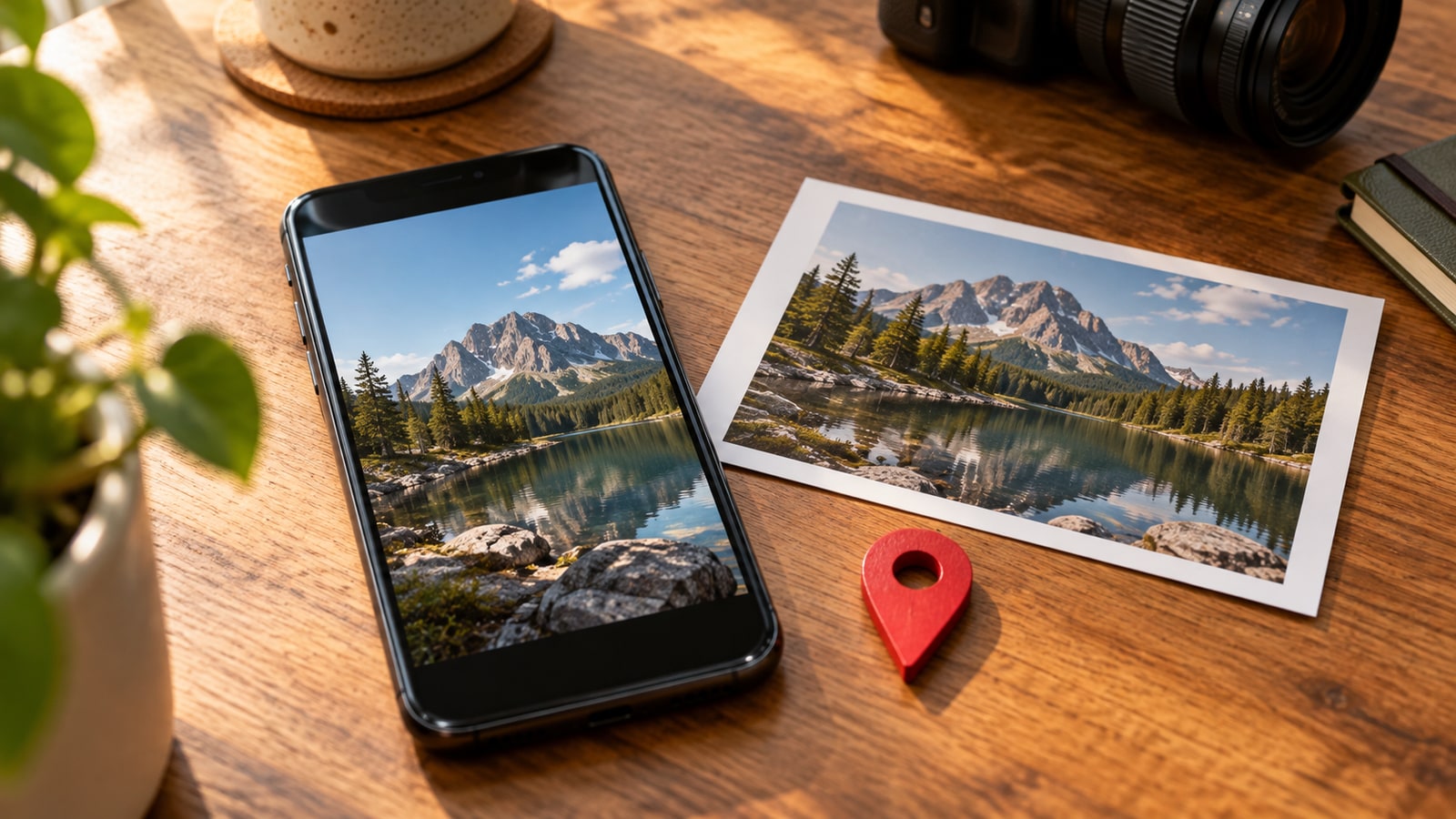
A photograph can look like a simple rectangle of pixels while carrying a second layer of information inside the file. EXIF, short for Exchangeable Image File Format, is one common way to store that information. Cameras and phones may record the capture date, shutter speed, lens, device model, orientation, and sometimes GPS coordinates alongside the image. The exact fields depend on the device, its permissions, and the software that has handled the file.
EXIF is not the name for every kind of photo metadata. A JPEG can also contain IPTC or XMP descriptions, author details, copyright notices, embedded thumbnails, and an ICC color profile. These fields have different jobs: some organize a photo library, some identify a creator, and others help an image display correctly. An image downloaded from a website may contain very little metadata, while an original camera file can contain much more.
What hidden details can reveal
Location deserves the closest look. A photo of something you are selling can include coordinates pointing to where it was photographed. A capture timestamp can add context about when you were there. Device and author fields may connect otherwise unrelated pictures, although a camera model alone does not identify a particular person. Think about the combination of fields rather than treating every tag as equally sensitive.
Metadata is also imperfect evidence. Camera clocks can be wrong, location can be missing, and editing software can change or remove fields. An upload date is not necessarily the date the photograph was taken. Use metadata as useful context, not unquestionable proof. Before publishing, decide what information the recipient actually needs and which details you would prefer to keep in your private original.
| Data | What it may reveal | What to check |
|---|---|---|
| GPS coordinates | The place where a photo was taken | Whether the sharing copy contains location tags |
| Capture date and time | When a scene was photographed | Capture timestamps, not just the file modification date |
| Device and author details | Camera model, creator name, or identifying fields | EXIF, IPTC, and XMP fields in the exported file |
| Orientation and color profile | How software should display the image | That removing metadata has not changed rotation or colors |
How to check the file you will actually share
Start with the information panel in your photo app. In Apple Photos on iPhone or iPad, open a picture and swipe up or tap the Info button to review its details. On a computer, file properties or a photo editor can show common fields. For a more complete view, a local metadata reader such as ExifTool can inspect several metadata families without uploading the photograph to another service.
Check the exported or downloaded copy, not only the picture displayed in your library. An app may keep its own location information separately from the file, and an export can include or omit different fields. Google Photos can also estimate a location from landmarks or other photos. A map in an app therefore does not automatically prove that the file contains GPS tags; likewise, a simple information panel may not show every embedded field.
Apple Photos sharing controls and Google Photos limits
On iPhone or iPad, select the photos in Photos, open the share sheet, tap Options, and turn off Location before sharing. Apple describes this as a way to share without the location where the pictures were taken. Treat it as a location-sharing control for that operation, not a promise that every other metadata field has been erased. Keep your original and check the received or exported copy when the details matter.
Google Photos makes an important distinction between locations added by a camera and locations you added yourself or that Google estimated. Its help documentation says you cannot edit or remove a camera-provided location in Google Photos. Sharing settings within the service are also different from removing embedded coordinates from a downloaded file. For a JPEG you will send elsewhere, inspect and prepare the file itself rather than assuming a hidden map means the underlying metadata is gone.
Prepare a separate public copy
Save a copy under a new filename before changing metadata. In a local editor that supports metadata removal, review location, capture time, author information, descriptions, and any other fields you do not want to distribute. Choose what to retain deliberately: copyright information can be useful, and removing it is not a requirement for every sharing situation. If a tool offers only a GPS-removal option, do not mistake that for removing all personal information.
Avoid treating a blanket delete-all option as harmless. Orientation metadata can tell an app to rotate a picture, and an ICC profile helps interpret its colors. Removing these fields can change how the photo appears even when the compressed image data has not been re-encoded. Prefer targeted removal when it fits your goal, then open the resulting copy and compare its rotation and colors with the original.
Finally, inspect the output with a metadata reader. Location can appear in more than one metadata family, and descriptions may contain a place name even without GPS coordinates. This check is more useful than trusting a filename such as clean-photo.jpg. Editing metadata in a JPEG can avoid recompressing the image, but a general photo editor may re-encode during export; check the tool's behavior if preserving image quality matters.
Why JPEG-to-JPG renaming does not remove EXIF
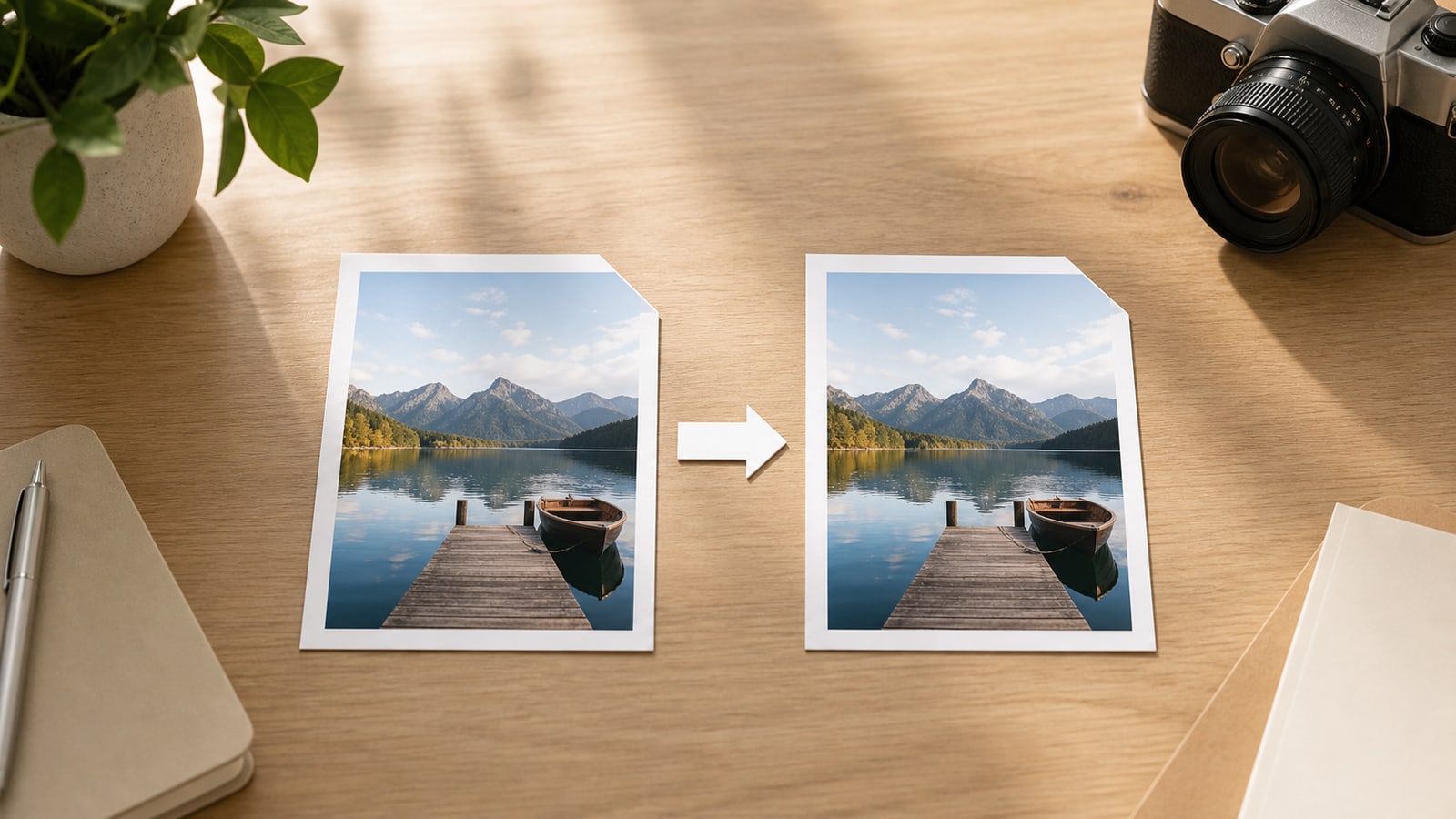
The .jpeg and .jpg extensions usually refer to the same JPEG format. Renaming a file changes its name, not its internal image data or metadata. This site's converter downloads the original file contents using a .jpg filename. That preserves image quality, but it also preserves EXIF, GPS tags, and other embedded information that was present in the selected file.
Processing a file locally and removing metadata are separate properties. A tool can work entirely in your browser while retaining every original metadata field. If your goal is privacy before publication, prepare and verify a suitable sharing copy first. You can then rename its extension if the receiving website requires .jpg.
Before sharing: a checklist and common questions
Make the final check on the exact attachment or upload file. Do not assume that every social network strips every field: handling can vary with the service, upload method, and whether a recipient receives an original file or a resized preview.
Does removing EXIF make a photo anonymous? No. Faces, street signs, house numbers, reflections, and recognizable landmarks remain visible in the pixels. Review the scene and the filename as well as the metadata.
Does removing location from a sharing copy change my original? It depends on the operation. Keeping a separate original and checking the final output makes that distinction clear. Do I need to remove all metadata? No: remove the information you do not want to share while retaining useful display or attribution details when appropriate.
- Keep the original in a private location and prepare a separate copy.
- Inspect GPS, timestamps, author fields, and descriptions in the sharing copy.
- Confirm that the photo still has the intended orientation and colors.
- Review visible details and the filename for information you would rather keep private.
- Verify the exported file instead of relying only on a photo-library information panel.
- Remember that changing .jpeg to .jpg does not clean metadata.