Common JPEG Mistakes That Make Images Look Worse
Learn the everyday JPEG mistakes that damage image quality: over-compression, repeated saves, bad resizing, color problems, and choosing JPEG for the wrong images.
- JPEG is best as a final delivery format, not as a file you repeatedly edit and re-save.
- Most visible JPEG problems come from too much compression, resizing after export, missing color profiles, or using JPEG for graphics that need sharp edges.
- Start from the best original, resize once, export once, and keep a lossless master when future edits are likely.
The quick idea: JPEG is good, but not magic
JPEG is an excellent format for real-world photos because it can make large images much smaller while keeping them visually useful. That is why cameras, websites, email clients, marketplaces, and social apps still rely on it every day.
The tradeoff is that JPEG is lossy. It simplifies image detail to save space. When you compress too hard, save too many times, resize carelessly, or use JPEG for the wrong kind of artwork, those shortcuts become visible.
Mistake 1: Over-compressing the final image
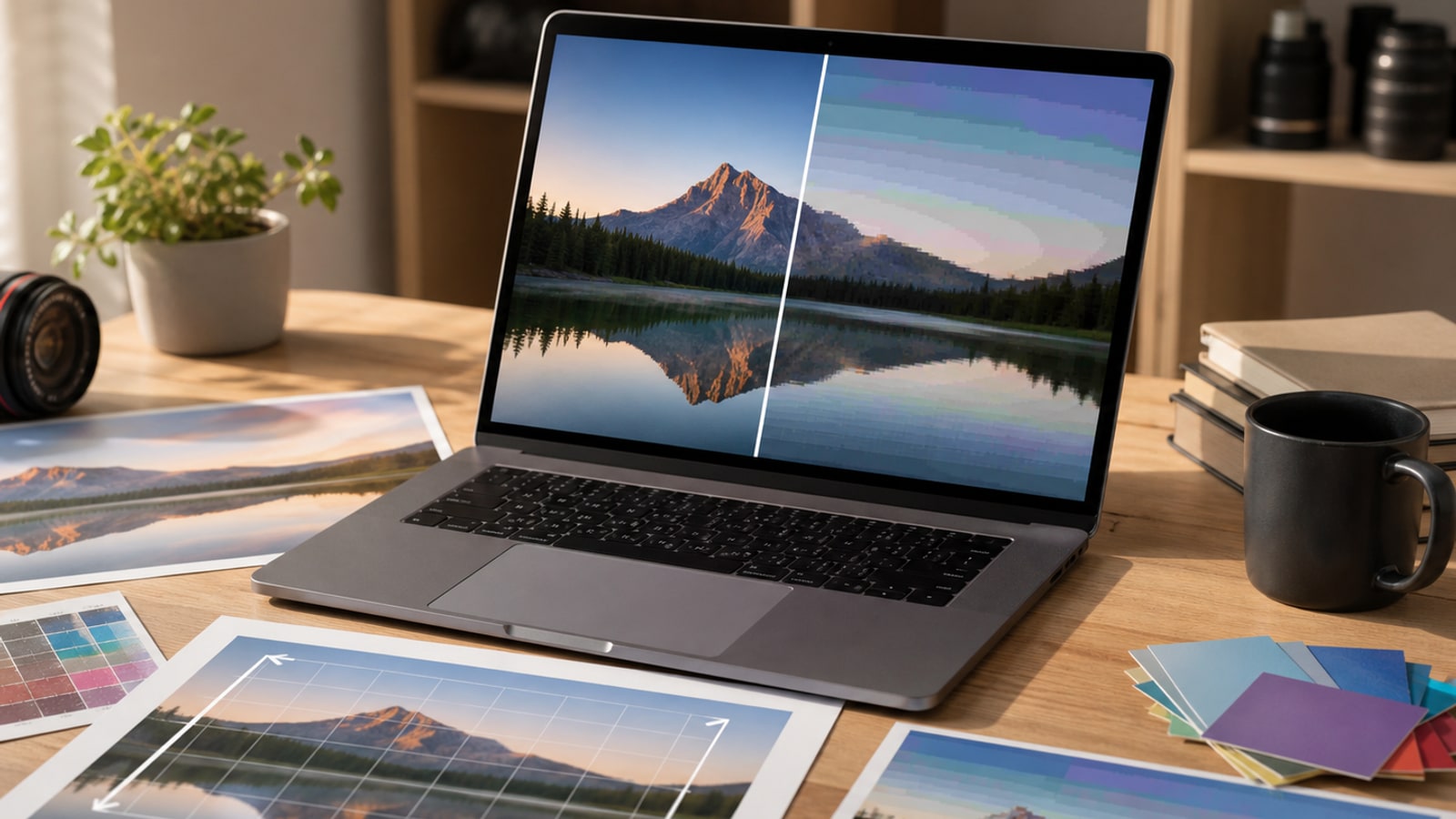
Over-compression is the classic JPEG mistake. A smaller file looks attractive until blocky squares, fuzzy edges, banding, or smeared texture start showing up in the final image.
The danger is that quality sliders are not universal. A setting of 75 in one app may not match 75 in another. Judge the export by looking at the actual image size and the places where artifacts usually appear.
| What you see | Likely cause | Better habit |
|---|---|---|
| Blocky squares in flat areas | Quality set too low or image compressed twice | Export from the original and raise quality before testing file size |
| Noise around sharp edges | Strong compression near high contrast | Use a higher quality setting or a non-JPEG format for graphics |
| Banding in skies or gradients | Compression removed subtle tonal detail | Use gentler compression and avoid stacking edits |
| Soft, smeared texture | Too much detail discarded | Keep a high-quality master and export a smaller delivery copy |
Mistake 2: Re-saving the same JPEG again and again
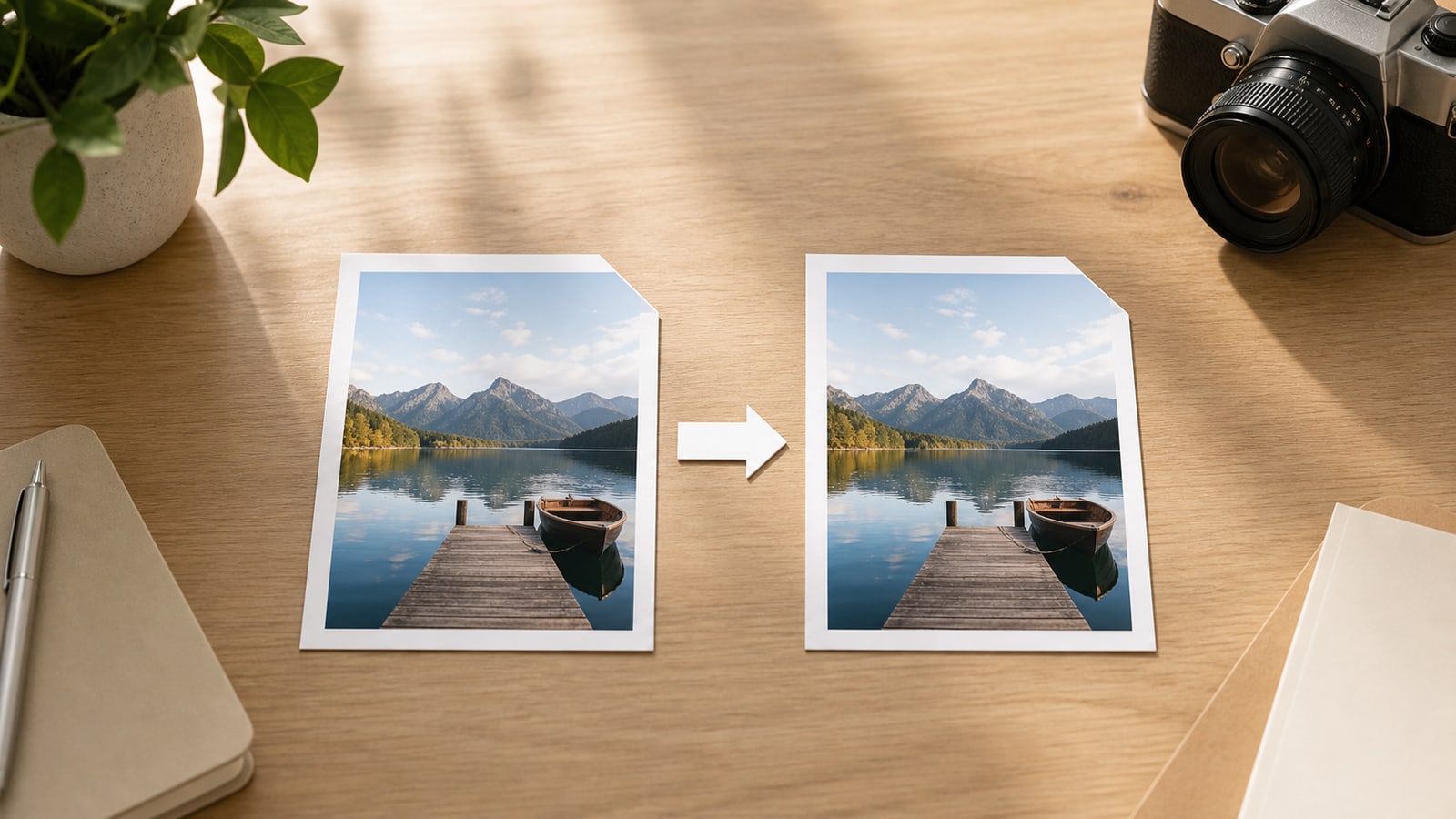
Every JPEG save can create a new lossy version. If you open a JPEG, edit it, save it, reopen it, crop it, save it again, and repeat that cycle, each export can add another layer of compression loss.
The safer habit is to treat JPEG as an output copy. Keep an editable master, make changes there, and export a fresh JPEG only when you need a delivery file.
- Keep an original RAW, TIFF, PNG, PSD, or high-quality source when possible
- Make edits from that source instead of from a downloaded JPEG
- Export the final JPEG once for the target size
- If a client sends a JPEG, avoid saving intermediate versions over the same file
Mistake 3: Resizing in the wrong order
Resizing and compression are separate decisions, but they affect each other. If you export a JPEG, upload it somewhere, download it, resize it, and export again, the image may lose detail twice: once from resizing and again from compression.
Upscaling is another trap. Enlarging a small JPEG cannot recover detail that was never there, and it can make compression artifacts larger and easier to notice.
- Crop and straighten before final export
- Resize to the actual display or upload size before compression
- Avoid enlarging small JPEGs unless there is no better source
- Do not use a huge camera JPEG when the page only displays a small thumbnail
Mistake 4: Ignoring color and metadata
JPEG files can carry color profiles and metadata. If a color profile is missing or converted badly, a photo that looked rich in an editor can appear dull, oversaturated, or slightly shifted elsewhere.
For ordinary web publishing, sRGB is usually the safest target because it is widely expected by browsers and everyday apps. Metadata also deserves intention: sometimes you want camera and copyright details, and sometimes you want a smaller, cleaner public file.
- Convert wide-gamut exports to sRGB unless your workflow needs another profile
- Preview the image in a browser or target app, not only in the editor
- Strip metadata only when you intentionally want smaller, cleaner delivery files
- Keep a private master if location, camera, or copyright metadata matters
Mistake 5: Using JPEG for the wrong type of image
JPEG was designed for continuous-tone photographic images: portraits, product photos, travel shots, food images, landscapes, and other scenes with many colors and gradual changes. It is less comfortable with crisp text, flat graphics, logos, icons, and transparent artwork.
If the image needs transparency, exact edges, editable vector shapes, or small readable text, another format is often a better choice.
| Image type | Better choice | Why | JPEG risk |
|---|---|---|---|
| Photo, product shot, portrait | JPEG or modern photo format | Natural texture compresses well | Too much compression can still show artifacts |
| Logo or icon | SVG or PNG | Edges stay crisp and transparency works | Blurred edges and no alpha channel |
| Screenshot with text | PNG or WebP | Small text and UI lines stay cleaner | Ringing and fuzzy type |
| Transparent graphic | PNG, WebP, or SVG | Alpha transparency is supported | JPEG fills transparency with a flat background |
| Image you will keep editing | TIFF, PNG, PSD, RAW, or project file | Preserves more edit flexibility | Repeated JPEG saves degrade quality |
A simple JPEG export checklist
Before you export, slow down for one minute. This checklist prevents most avoidable JPEG quality problems without making the workflow complicated.
- Use the highest-quality source available
- Make crops, retouching, and color edits before final export
- Resize once to the intended pixel dimensions
- Choose sRGB for ordinary web and sharing workflows
- Export one JPEG delivery copy and compare it at actual display size
- Check edges, gradients, skin tones, and text for artifacts
- Save the editable master separately from the final JPEG
FAQ
Q: Is a 100% JPEG quality setting always best? A: Not always. It can create a much larger file with little visible benefit. A slightly lower setting often looks the same at the final display size.
Q: Does converting .jpeg to .jpg reduce quality? A: Renaming the extension does not change pixels. Quality changes only when software re-encodes the image.
Q: Can I fix a badly compressed JPEG? A: You can sometimes reduce noise or hide artifacts, but lost detail cannot be fully restored. The best fix is to re-export from the original.
Q: Should every website image be JPEG? A: No. JPEG is great for photos, but logos, icons, UI screenshots, and transparent graphics usually need SVG, PNG, or WebP.